Your laptop's touchpad isn't just a basic mouse replacement; it's a powerful command center waiting to be unleashed. Mastering advanced touchpad gestures for navigation and productivity can transform the way you interact with your device, making every click and swipe feel intuitive, efficient, and surprisingly natural. Forget fumbling for a mouse or endlessly tabbing through windows—your fingertips hold the key to a smoother, faster workflow.
This isn't about mere scrolling; it's about unlocking a suite of sophisticated movements that put you in control of your digital environment. Whether you're a seasoned professional juggling multiple applications or a student navigating research papers, leveraging these advanced gestures on Windows 11 can dramatically cut down on tedious clicks and accelerate your tasks.
At a glance: Master Your Touchpad
- Elevate Your Efficiency: Learn three- and four-finger gestures for seamless multitasking, desktop switching, and quick access to essential features.
- Tailor Your Experience: Discover how to customize nearly every advanced gesture in Windows 11 settings to match your unique workflow.
- Troubleshoot Like a Pro: Get actionable steps to resolve common touchpad issues, from unresponsive gestures to driver conflicts.
- Unlock Hidden Potential: Understand how combining gestures with keyboard shortcuts creates a truly fluid and powerful user experience.
- Maintain Peak Performance: Best practices for keeping your touchpad responsive and your gestures accurate.
From Click to Intuition: The Power of Touchpad Gestures
For years, the mouse reigned supreme as the primary input device for personal computers. But with the rise of laptops, 2-in-1s, and touch-enabled devices, the humble touchpad has evolved into a sophisticated tool capable of much more than just cursor movement. Modern touchpads, especially those on Windows 11 machines, offer a rich array of gestures that mimic touch screen interactions, providing an intuitive bridge between your thoughts and your device's actions.
These gestures aren't just a nice-to-have; they're a fundamental shift in how we navigate and interact with our digital world. Think about the fluidity of swiping through photos on a smartphone or pinching to zoom on a tablet. Your touchpad brings that same level of tactile responsiveness to your laptop, offering a direct and engaging way to manage windows, switch applications, and access system functions without breaking your stride.
While basic gestures like tapping and two-finger scrolling are widely known, the real magic happens when you delve into the advanced multi-finger commands. These are the shortcuts that transform a series of clicks into a single, elegant motion, shaving precious seconds off every task and allowing you to remain in your productive flow.
The Foundation: Essential Touchpad Gestures You Already Use (or Should)
Before we dive into the deep end of advanced gestures, it's worth a quick refresher on the fundamental movements. These are the building blocks, and mastering them ensures a solid foundation for the more complex actions. Most modern touchpads respond to these gestures without specific configuration, making them universally accessible.
Basic Touchpad Moves to Know
- Single-finger tap (Left-Click): This is your everyday click. Tap once on an item to select it, open an application, or activate a link. It's the digital equivalent of a mouse's left button.
- Two-finger tap (Right-Click): Need to access a context menu for more options? Simply tap two fingers anywhere on the touchpad. This quickly brings up commands like 'Rename,' 'Delete,' 'Copy,' or 'Paste.'
- Double-tap and drag (Multi-Select): Ever need to highlight multiple items in a list or drag a file across your desktop? Tap twice, but keep your second tap held down. Now, as you move your finger, you'll select a range of items or drag the initial one. Release your finger to complete the action.
- Two-finger scroll (Vertical & Horizontal): This is probably one of the most beloved basic gestures. Place two fingers on the touchpad and slide them up or down to scroll vertically through webpages, documents, or long lists. Slide them left or right to scroll horizontally, perfect for wide spreadsheets or image galleries.
- Pinch to Zoom (In & Out): Just like on a smartphone, you can zoom in or out of images, maps, or web pages. Place two fingers on the touchpad, then pinch them together to zoom out, or spread them apart to zoom in. This offers a dynamic way to adjust your view without clicking tiny zoom controls.
These foundational gestures are the bedrock of efficient touchpad use. Becoming proficient in them allows you to perform common tasks swiftly, preparing you for the more intricate dance of advanced gestures.
Beyond the Basics: Unlocking Advanced Touchpad Gestures for Windows 11
Windows 11 elevates touchpad interaction with a comprehensive suite of multi-finger gestures designed to streamline your workflow and enhance multitasking. These aren't just flashy tricks; they're powerful commands that put critical system functions right at your fingertips. They're particularly useful on laptops and 2-in-1 devices, where quick transitions are key to maintaining productivity.
Here's where the real magic happens, focusing on three- and four-finger gestures that give you unparalleled control over your operating system.
Three-Finger Power Plays
These gestures are your go-to for managing open applications and virtual desktops. They're incredibly efficient for switching contexts and getting a bird's-eye view of your ongoing work.
- Three-Finger Swipe Up (Open Task View): This is arguably one of the most powerful gestures. Swipe three fingers upwards on your touchpad, and voilà! Task View appears. This central hub shows all your open applications, any virtual desktops you have running, and your activity history. It's fantastic for quickly jumping between different projects or finding a minimized window.
- Three-Finger Swipe Down (Show Desktop): Need to quickly access a file on your desktop or just clear your screen for a moment of calm? Swipe three fingers downwards. All open windows will minimize, revealing your desktop. To bring everything back, simply swipe up again with three fingers (though the default action is usually Task View, it will often restore your last view if no other action intervenes).
- Three-Finger Swipe Left/Right (Switch Apps/Desktops): This gesture is a multitasking dream.
- Default Behavior (App Switching): Swipe three fingers to the left or right to swiftly cycle through your open applications. This is much faster than Alt+Tab, keeping your hands on the touchpad.
- Customized Behavior (Desktop Switching): With a slight tweak in settings (which we'll cover next), you can configure this gesture to switch between your virtual desktops instead. This is ideal if you organize your work across multiple digital workspaces.
Four-Finger Command Center
While the three-finger gestures handle app and desktop management, four-finger gestures provide quick access to system notifications and a more granular view of specific applications.
- Four-Finger Tap (Open Action Center): Tap four fingers anywhere on your touchpad. This immediately brings up the Action Center, your hub for notifications, quick settings like Wi-Fi and Bluetooth, and other essential system toggles. It's a faster way to check alerts or adjust common settings without reaching for the mouse or clicking the taskbar icon.
- Four-Finger Swipe Up (Open Task View - Again!): Yes, this gesture also opens Task View. Microsoft provides this as an alternative, giving you flexibility. If you prefer using four fingers for task management, this is your route. It essentially duplicates the three-finger swipe up, ensuring you can access Task View whichever way feels most natural.
- Four-Finger Swipe Down (Show Open Windows of Current App): This is a niche but powerful gesture for deep dives into a single application. Swipe four fingers downwards to minimize all other windows, leaving only the currently active application's windows visible. This is excellent for focusing intensely on one project or comparing multiple documents within the same software suite.
- Four-Finger Swipe Left/Right (Switch Desktops - If Customized): Similar to the three-finger swipe, you can often customize four-finger swipes to switch between virtual desktops. This offers another pathway for users who prefer four-finger gestures for broader navigation tasks.
These advanced gestures are not just shortcuts; they fundamentally change your interaction paradigm. They encourage a more fluid, touch-centric approach to computing, minimizing reliance on the keyboard for navigation and keeping your focus on the task at hand.
Making Them Your Own: Customizing Touchpad Gestures in Windows 11
The true power of Windows 11's touchpad gestures lies not just in their existence, but in their customizability. Microsoft understands that every user's workflow is unique, offering robust settings to tailor these multi-finger commands to your personal preferences. This personalization ensures that your touchpad truly works for you, rather than you having to adapt to its defaults.
Accessing Your Touchpad Settings
To start customizing, open the Settings app. You can do this by clicking the Start button and selecting the gear icon, or by pressing Windows key + I.
Navigate to: Bluetooth & Devices > Touchpad.
Here, you'll find several sections dedicated to fine-tuning your touchpad experience.
Basic Gesture Customization
Even the fundamentals can be tweaked:
- Tap to click: This toggle allows you to enable or disable the single-finger tap for left-clicking. Some users prefer the physical click of the touchpad button, while others find tapping more intuitive.
- Scroll & zoom: This section lets you choose the scrolling direction. If you're coming from a macOS background, you might prefer "Reverse direction scrolling" (natural scrolling), where dragging your fingers down scrolls content down, mimicking touching a physical paper. You can also adjust the sensitivity of the pinch-to-zoom gesture here.
Diving into Three-Finger Gestures
This is where you start assigning actions to your three-finger taps and swipes.
Under the Three-finger gestures section, you'll find drop-down menus for:
- Taps:
- Default: Search (opens Windows Search).
- Other options: Action Center, Play/Pause, Mouse middle click, Change Audio and Volume, or even custom shortcuts.
- Pro Tip: Assigning "Mouse middle click" can be incredibly useful for opening links in new tabs in browsers or closing tabs with a single tap.
- Swipes:
- Default: Switch apps and show desktop (this is the default behavior described earlier: up for Task View, down for desktop, left/right for app switching).
- Other options: Switch desktops and show desktop (up for Task View, down for desktop, left/right for desktop switching), Change audio and volume (left/right to change volume, up/down to skip tracks), or "Nothing" if you want to disable them.
Tailoring Four-Finger Gestures
Similar to three-finger gestures, you can modify the actions tied to four-finger taps and swipes.
Under the Four-finger gestures section, you'll see options for:
- Taps:
- Default: Action Center.
- Other options: Search, Play/Pause, Mouse middle click, Change Audio and Volume, or custom shortcuts.
- Swipes:
- Default: Switch apps and show desktop (same as three-finger default).
- Other options: Switch desktops and show desktop, Change audio and volume, or "Nothing."
Advanced Gesture Customization: Unlocking Deeper Control
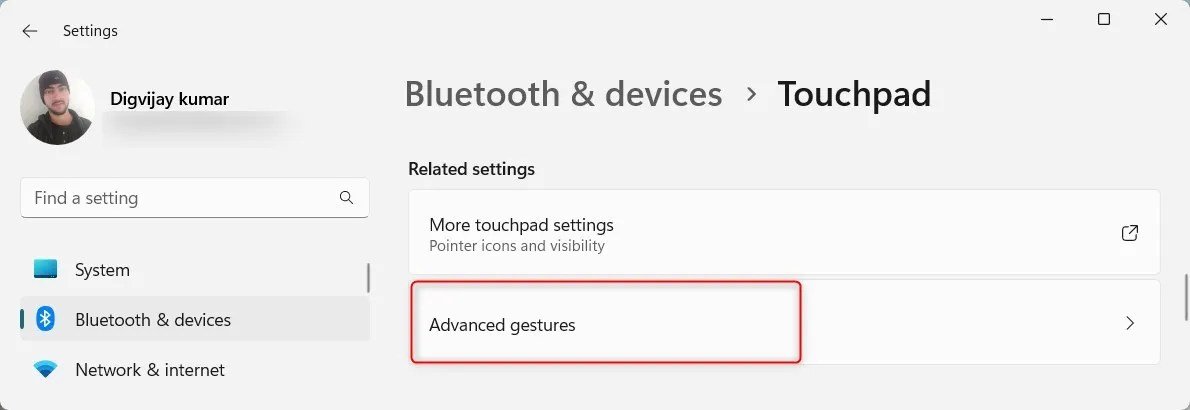
For those who crave even more precise control, Windows 11 offers an "Advanced Gestures" menu within the Touchpad settings. This section lets you assign highly specific actions beyond the predefined sets.
Here, you can assign custom actions for three- and four-finger taps and swipes (up, down, left, right).
Imagine assigning:
- Mouse back/forward: For effortless web navigation.
- Custom shortcuts: Map a gesture to
Ctrl+Cfor copy orCtrl+Vfor paste, or even launch a specific application. - Snapping windows: Quickly organize your screen real estate.
- Maximizing/minimizing apps: Instant window management.
- Muting audio/video: A quick way to silence distractions.
- Hiding everything: A panic button for privacy.
- Navigating media: Play, pause, skip forward/backward.
The flexibility here is immense. You could, for instance, set three-finger swipes to switch applications and four-finger swipes to switch between virtual desktops, creating a clear distinction for different navigation types. Alternatively, you might set a three-finger tap to open your favorite browser and a four-finger tap to open your email client, streamlining your most frequent actions.
Experimentation is key here. Spend some time in these settings, try out different configurations, and see what truly enhances your personal workflow. Remember, there's no single "right" way to set up your gestures; it's all about what feels most intuitive and productive for you.
Optimizing Your Workflow: Best Practices for Gesture Mastery
Simply knowing about advanced gestures isn't enough; integrating them seamlessly into your daily routine requires practice and a few smart habits. Think of it like learning to play a musical instrument—consistent effort yields fluid performance.
1. Familiarize, Then Commit
Start by focusing on one or two new gestures at a time. Instead of trying to memorize everything at once, pick the ones you think will be most useful (e.g., three-finger swipe up for Task View). Use them deliberately for a few days until they start to feel natural.
2. Consistency Builds Muscle Memory
The more consistently you use a gesture, the faster your brain and fingers will connect the movement to its action. Eventually, you'll perform them without conscious thought, much like tying your shoelaces or typing. Make a conscious effort to use the gesture instead of reaching for the mouse or keyboard shortcut initially.
3. Adjust Settings for Optimal Responsiveness
Don't settle for default settings if they don't feel right. Head into Settings > Bluetooth & Devices > Touchpad and tweak scroll speed, tap sensitivity, and gesture assignments. A touchpad that feels "just right" will encourage more frequent and accurate gesture use.
4. Keep Your Touchpad Clean
A dirty or greasy touchpad can severely hinder gesture recognition. Dust, crumbs, and finger oils can interfere with the sensor's ability to track multiple fingers accurately. Periodically wipe your touchpad with a microfiber cloth to keep it pristine and responsive.
5. Gentle, Deliberate Touches
Avoid pressing too hard or using excessive force. Modern touchpads are highly sensitive and respond best to gentle, deliberate touches. A light, consistent pressure with the pads of your fingers usually yields the best results. Rushed or imprecise movements are often misread.
6. Practice Multi-Touch Gestures Regularly
Some gestures, especially the three- and four-finger ones, require coordinating multiple fingers. This can feel awkward at first. Practice them frequently, starting with slower, more intentional movements, gradually increasing your speed as you gain confidence.
7. Keep Device Drivers and Firmware Updated
Outdated drivers are a common culprit for unresponsive or buggy touchpad gestures. Regularly check for updates for both Windows 11 and your device's specific touchpad drivers.
- Windows Updates: Go to
Settings > Windows Updateand click "Check for updates." - Device Manufacturer: Visit your laptop manufacturer's support website (e.g., Dell, HP, Lenovo) and look for the latest touchpad or chipset drivers for your specific model.
- Device Manager: Press
Windows key + X, then select "Device Manager." Expand "Mice and other pointing devices," right-click your touchpad device, and select "Update driver."
8. Combine Gestures with Keyboard Shortcuts
The most efficient workflows often blend input methods. Use advanced touchpad gestures for quick navigation and window management, then seamlessly switch to keyboard shortcuts for text editing, saving files, or launching specific commands within applications. This hybrid approach offers the best of both worlds, creating a truly fluid and powerful user experience. If you're accustomed to a Chromebook's left-click shortcuts, you'll find a similar blend of efficiency here.
By incorporating these best practices, you won't just learn gestures; you'll integrate them into an intuitive extension of your natural interaction with your computer, dramatically boosting your productivity.
When Gestures Go Rogue: Troubleshooting Common Touchpad Issues
Even the most advanced technology can sometimes hit a snag. If your touchpad gestures aren't responding as expected, it can be frustrating. Before you despair, try these troubleshooting steps to get your gestures back on track.
Initial Fixes: The Quick Checks
Many common problems can be resolved with simple actions.
- Restart Your Device: It's the classic tech support advice for a reason. A full restart can clear temporary glitches and refresh your system's drivers and processes.
- Update Windows 11: Microsoft frequently releases updates that include bug fixes, performance improvements, and driver updates. Ensuring your operating system is current can resolve underlying issues affecting your touchpad. Go to
Settings > Windows Updateand click "Check for updates." - Update Touchpad Drivers: Outdated or corrupted drivers are a prime suspect.
- Device Manager: Press
Windows key + Xand select "Device Manager." Expand "Mice and other pointing devices" (or "Human Interface Devices"), right-click your touchpad device (e.g., "HID-compliant touchpad" or "ELAN/Synaptics Touchpad"), and select "Update driver." Choose "Search automatically for updated driver software." - Manufacturer's Website: For the most up-to-date drivers, visit your laptop manufacturer's support website. Search for your specific model and download the latest touchpad or input device drivers directly.
- Check Touchpad Settings: It might sound obvious, but sometimes a setting gets inadvertently changed. Go to
Settings > Bluetooth & Devices > Touchpadand ensure that "Tap to click," "Scroll & zoom," and your three- and four-finger gestures are enabled as you expect them to be. Make sure nothing is set to "Nothing" if you intend for it to have an action.
Deeper Dives: When Basic Steps Aren't Enough
If the quick checks don't solve the problem, it's time for more targeted troubleshooting.
- Reset Touchpad Settings to Default: If you've been experimenting with customization, an accidental misconfiguration might be the cause. In
Settings > Bluetooth & Devices > Touchpad, scroll down to "Three-finger gestures" or "Four-finger gestures" and look for a "Reset" option or manually set them back to their default values (e.g., "Switch apps and show desktop"). Sometimes, there's a global "Reset touchpad settings" option you can use. - Disable and Re-enable Gestures: Sometimes, simply toggling a setting off and then back on can kickstart it. In your touchpad settings, temporarily disable some gesture options, restart your device, and then re-enable them.
- Check for Hardware Issues: If gestures remain unresponsive, it might be a hardware problem with the touchpad itself.
- External Mouse: Connect an external USB mouse. If the mouse works perfectly, it suggests the issue is specific to the touchpad.
- External Touchscreen (if applicable): If you have a 2-in-1 or touchscreen device, test if touch gestures on the screen work correctly. If they do, it further narrows the problem to the touchpad hardware.
- Boot into Safe Mode: Starting Windows in Safe Mode loads only essential drivers. If gestures work in Safe Mode, it indicates a conflict with third-party software or drivers.
When to Seek Professional Help
If you've exhausted all troubleshooting steps and your touchpad gestures are still misbehaving, it's likely a more complex software conflict or a physical hardware defect.
- Contact Your Device Manufacturer: They can offer device-specific diagnostics, firmware updates, or repair options.
- Consult a Professional Technician: A certified technician can perform a deeper diagnostic and suggest repair or replacement if necessary.
Remember, consistent updates and regular maintenance can prevent many of these issues before they start. Keeping your system healthy is key to a smooth and responsive touchpad experience.
Your Touchpad, Amplified: Taking Productivity to the Next Level
You've journeyed from basic taps to the intricate dance of advanced multi-finger gestures, learned how to mold them to your will, and even how to troubleshoot when things go awry. What now? The final step is ongoing integration and continuous improvement.
Your touchpad is no longer just a cursor mover; it's a dynamic interface, a silent partner in your daily digital life. By consciously incorporating these advanced gestures, you're not just saving clicks; you're cultivating a more intuitive relationship with your device. You're reducing cognitive load, keeping your focus on the content and task at hand, rather than the mechanics of navigation.
Think of the time saved: a swift three-finger swipe to switch between a research document and your email, a four-finger tap to check a notification without breaking your writing flow, or a customized gesture to snap a window into place. These small efficiencies accumulate, contributing to a significantly smoother and more productive day.
The beauty of Windows 11's gesture system is its adaptability. Don't be afraid to revisit your touchpad settings as your workflow evolves. New projects might demand different shortcuts, or you might discover a more efficient combination of gestures and keyboard commands. Experiment, refine, and make these gestures truly your own.
Embrace the power at your fingertips. Your laptop's touchpad is a gateway to a world of seamless navigation and enhanced productivity, waiting for you to unlock its full potential. Go forth and swipe!