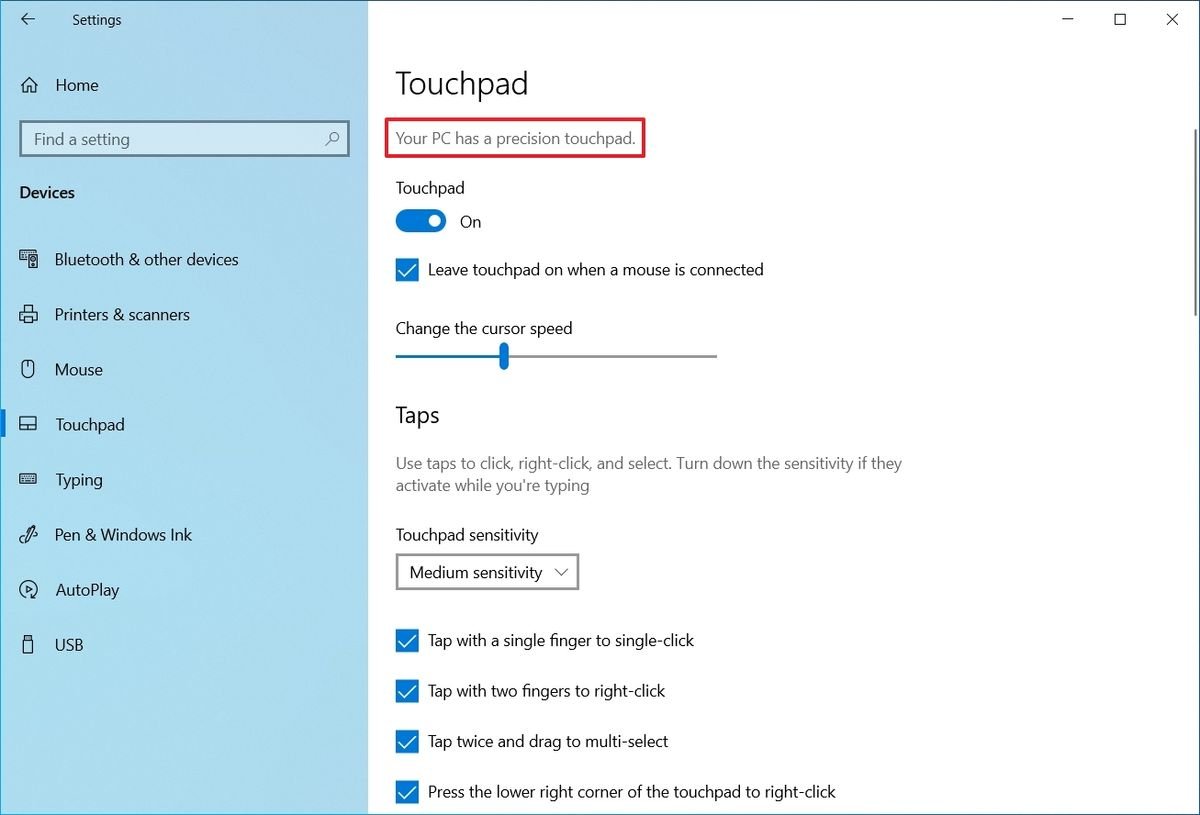
Your Chromebook's touchpad isn't just a basic input device; it's a dynamic interface, a canvas for your digital interactions. Yet, for many, it remains stuck in its factory-default slumber. Imagine effortlessly navigating your documents, snapping between tabs, or zooming in on details with a fluidity that feels like an extension of your thoughts. That’s the power of customizing Chromebook touchpad settings. It’s about transforming a generic tool into a personalized command center, finely tuned to your unique workflow and comfort.
Think of it as optimizing your workspace for maximum efficiency and minimum friction. A few tweaks to your touchpad can dramatically improve your productivity, reduce hand strain, and make your Chromebook experience genuinely yours.
At a Glance: What You'll Discover
- Quick Access: Exactly how to dive into your Chromebook's touchpad settings.
- Core Adjustments: Understand and master settings like pointer speed, acceleration, and tap-to-click.
- Scrolling Savvy: Choose between natural and traditional scrolling to match your intuition.
- Primary Button Precision: Configure your left and right-click behaviors for optimal use.
- Gesture Mastery: Unlock the power of multi-finger gestures for faster navigation.
- Troubleshooting: Solve common touchpad woes and keep your workflow smooth.
- Best Practices: Tips for an ergonomic and efficient touchpad experience.
Why Your Touchpad Deserves a Personal Touch
In the fast-paced world of digital tasks, every millisecond and every comfortable movement counts. A misaligned touchpad setting can lead to frustrating delays, accidental clicks, or even repetitive strain. Customizing isn't just about preference; it's about ergonomic efficiency and a smoother, more intuitive interaction with your device.
Perhaps you're a designer needing precise pointer control, a writer who prefers swift, natural scrolling through documents, or a student constantly juggling tabs. Whatever your role, your touchpad should work with you, not against you. By taking control of these settings, you empower yourself to move through your digital world with greater speed, accuracy, and comfort. It's a small investment of time that pays dividends in daily productivity and reduces that nagging friction in your workflow.
Your Command Center: Accessing Touchpad Settings
Getting to your touchpad controls on a Chromebook is refreshingly straightforward, designed to be intuitive even for first-time users. You won't need to dig through obscure menus or complicated system files.
Here's how to begin your customization journey:
- Click the Time: Look to the lower-right corner of your Chromebook's screen, in the system tray. You'll see the time, Wi-Fi icon, battery indicator, and your profile picture. Click on this area.
- Open Settings: A quick settings panel will pop up. In this panel, locate and click the gear icon (⚙️), which represents your Chromebook's Settings.
- Navigate to Device: Once the main Settings window opens, you'll see a menu on the left-hand side. Scroll down and click on Device.
- Select Touchpad: Under the "Device" section, if your Chromebook has a built-in touchpad, you'll see an option labeled Touchpad. Click on it.
And just like that, you've arrived at the control panel for your Chromebook's touchpad. From here, you'll have access to all the settings that allow you to fine-tune its behavior.
Diving Deep: Understanding Each Setting
Now that you've found the control panel, let's break down each setting and what it means for your interaction with the Chromebook. These aren't just technical terms; they are levers you can pull to sculpt your ideal user experience.
1. Touch to Click: Tap, Don't Press
This setting dictates whether a light tap on the touchpad is registered as a click, or if you need to physically press down on the touchpad surface.
- What it does:
- Enabled: A gentle tap with one finger acts as a left-click.
- Disabled: You must physically press the touchpad down until you hear/feel a click to register a left-click.
- Why it matters:
- Pros of Enabled: Many users find tapping more natural and less fatiguing, especially for extended use. It's often quicker for rapid clicking.
- Cons of Enabled: Can lead to accidental clicks if you rest your finger too heavily or accidentally brush the touchpad.
- Pros of Disabled: Provides a more tactile and deliberate clicking experience, reducing accidental inputs.
- Cons of Disabled: Requires more physical effort and can be slower for frequent clicks.
- Recommendation: This is largely personal preference. Try enabling it for a day or two and see if it feels more intuitive for your workflow. If you find yourself clicking unintentionally, switch it off.
2. Drag with Touchpad: Moving Things Around
Dragging is a fundamental action, allowing you to select text, move windows, or rearrange icons. This setting influences how you initiate and maintain that drag.
- What it does: When enabled, you can drag items by double-tapping and holding on the second tap, then moving your finger.
- Why it matters:
- Convenience: For many, the "double-tap and drag" method feels very fluid and doesn't require constant pressure on the touchpad.
- Alternatives: If disabled, you'll typically need to physically press and hold the touchpad button (or the bottom-left corner if your touchpad is clickable) while moving your finger to drag.
- Recommendation: Keep "Drag with touchpad" enabled for a more versatile and less strenuous dragging experience. It often integrates well with "Touch to click" for a purely tap-based interaction.
3. Pointer Speed: Finding Your Flow
The pointer speed determines how quickly your on-screen cursor moves in relation to your finger's movement on the touchpad.
- What it does: A slider allows you to increase or decrease the sensitivity.
- Higher speed: Small finger movements result in larger cursor movements.
- Lower speed: Requires more finger movement for the same cursor travel.
- Why it matters:
- Productivity: Too slow, and you'll constantly be lifting and repositioning your finger; too fast, and precision tasks become frustrating.
- Precision vs. Speed: A slower speed is better for detailed work like graphic design or precise text selection. A faster speed is great for quickly traversing large screens or multiple monitors.
- Recommendation: Start in the middle and adjust incrementally. Play a simple game or try selecting small elements on a webpage to find your comfort zone. The "sweet spot" will allow you to move across your entire screen without lifting your finger too many times, while still maintaining accuracy.
4. Touchpad Acceleration: Smooth or Snappy?
Touchpad acceleration is a subtle but powerful setting that affects the rate at which your pointer speed increases. It's about how the cursor's speed changes based on the speed of your finger movement.
- What it does: When enabled, moving your finger faster will accelerate the pointer beyond its base speed, covering more ground quickly. Slower movements maintain precise control.
- Why it matters:
- Dynamic Control: Acceleration can make your touchpad feel more responsive and efficient, allowing for both fine adjustments and rapid traversal across the screen without constantly changing the "Pointer speed" setting.
- Potential Frustration: Some users find acceleration makes the cursor feel unpredictable or "slippery," making precise movements harder because the speed isn't consistent.
- Recommendation: This is another highly personal setting. If you value consistent, linear control, you might prefer to disable acceleration. If you like the feeling of being able to "flick" your cursor across the screen quickly while still having fine control for slower movements, keep it enabled. Try it both ways for a few hours each to feel the difference.
5. Scrolling Direction: Going with Your Gut (or Against It)
This setting changes how the content on your screen scrolls when you use a two-finger swipe on the touchpad. You'll usually see options like "Australian scrolling" (also known as "natural scrolling") or "traditional scrolling."
- What it does:
- Natural Scrolling (often default): Swiping up with two fingers scrolls the page down, mimicking how you'd interact with a touchscreen (pushing the content up).
- Traditional Scrolling: Swiping up with two fingers scrolls the page up, and vice-versa, similar to how a scroll wheel on a traditional mouse works (pulling the scrollbar).
- Why it matters:
- Intuition: Many modern devices (smartphones, tablets, macOS) use natural scrolling, making it feel intuitive to those accustomed to touch interfaces.
- Muscle Memory: If you've primarily used Windows PCs or older mice, traditional scrolling might feel more familiar.
- Recommendation: This setting often causes the most initial confusion for new Chromebook users. Experiment to see which feels more natural to your brain and muscle memory. There's no right or wrong answer; it's purely about what makes the most sense to you.
6. Primary Mouse Button: Left, Right, or Just Right for You
This setting determines which physical or tap action registers as your "primary" click. By default, it's set to "Left," meaning a single tap or a press on the left side (or anywhere) of the touchpad performs a left-click.
- What it does:
- Left (Default): A single tap or physical press acts as a left-click.
- Right: A single tap or physical press acts as a right-click. This is primarily useful for left-handed users who might prefer their primary action to be on the right side of the touchpad if they use an external mouse or a specific touchpad zone.
- Why it matters:
- Handedness: Crucial for left-handed users who might want to remap their primary click for comfort and efficiency, especially if they are also using an external mouse.
- Workflow: Most software is designed around the left-click as the primary action for selection and activation.
- Recommendation: For the vast majority of users, keeping the "Primary mouse button" set to "Left" is the most logical choice. If you're left-handed and find it more natural to reverse this, then certainly explore the "Right" option. For more details on this fundamental interaction, check out our guide on how to left click on Chromebook.
Beyond the Basics: Unlocking Advanced Touchpad Gestures
While the settings panel gives you granular control over fundamental behaviors, Chromebooks truly shine with their built-in multi-finger gestures. These are powerful shortcuts that, once mastered, will revolutionize your navigation and task management. These gestures are typically enabled by default and complement your customized settings rather than being configurable in the same menu.
1. Two-Finger Scroll: The Navigational Staple
This is the most common and arguably most essential multi-finger gesture.
- How to do it: Place two fingers on the touchpad and slide them up or down.
- What it does: Scrolls through webpages, documents, and lists. The direction will follow your "Scrolling Direction" setting (natural or traditional).
- Pro Tip: Use gentle, consistent pressure. You can also scroll horizontally on some applications or websites by sliding two fingers left or right.
2. Pinch to Zoom: Magnifying Your View
Just like on a smartphone, you can easily zoom in and out of content.
- How to do it: Place two fingers on the touchpad and pinch them together (to zoom out) or spread them apart (to zoom in).
- What it does: Magnifies or shrinks content within the active window, such as text on a webpage or images.
- When to use it: Perfect for reading small text, examining image details, or getting a broader overview of a page.
3. Three-Finger Swipes: Task Switching & Tab Management
This is where true efficiency begins for multitasking.
- Swipe Left/Right (Three Fingers):
- How to do it: Place three fingers on the touchpad and swipe horizontally.
- What it does: Navigates between open browser tabs (swipe left to go to the previous tab, swipe right to go to the next tab) or, in some contexts, between virtual desks if you're using them.
- Swipe Up (Three Fingers):
- How to do it: Place three fingers on the touchpad and swipe upwards.
- What it does: Opens the "Overview" mode, showing all your open windows and virtual desks. This is incredibly useful for quickly switching between applications or managing your workspace.
- Recommendation: Mastering three-finger gestures can drastically cut down on time spent clicking tabs or searching for windows. Make them a core part of your daily interaction.
4. Tap & Hold for Right-Click: A Hidden Gem
While pressing with two fingers is the standard way to right-click, there's another handy method.
- How to do it: Perform a single tap (if "Touch to click" is enabled) and hold your finger down briefly.
- What it does: Registers as a right-click, opening the context menu.
- When to use it: Some users find this more natural than using two fingers, especially when holding the Chromebook or using it in a cramped space.
Crafting Your Ideal Touchpad Experience: Best Practices
Customizing your touchpad isn't a one-and-done deal; it's an ongoing conversation with your device. Here's how to ensure you're getting the most out of your personalized settings:
1. Experiment and Iterate
The beauty of these settings is how easily you can change them. Don't be afraid to try different combinations. Spend a day with a higher pointer speed, then a day with lower. Toggle acceleration on and off. Your "ideal" setting might evolve as your tasks change or as you become more familiar with your Chromebook. Think of it as tuning an instrument – it requires a bit of trial and error to hit just the right notes.
2. Consider Your Daily Tasks
What do you primarily use your Chromebook for?
- Precision tasks (editing photos, graphic design): You'll likely prefer lower pointer speed and possibly disabled acceleration for more granular control.
- General browsing and document editing: A medium-to-high pointer speed with natural scrolling might feel more fluid.
- Multitasking guru: Focus on mastering three-finger gestures for rapid tab and window switching.
Tailor your settings to the dominant activities in your workflow.
3. Ergonomics First
An uncomfortable hand or wrist can seriously hinder productivity. Pay attention to how your hand feels after extended use with your current settings.
- Reduce strain: If you find yourself overextending your fingers, adjust pointer speed. If constant pressing hurts, enable "Touch to click."
- Neutral posture: Ensure your wrist stays relatively straight, and your fingers are relaxed. Your touchpad settings should support, not detract from, a comfortable posture.
4. When to Opt for an External Mouse
Despite all the fantastic customization options, there are times when even the most optimized touchpad simply can't compare to a dedicated external mouse. For tasks requiring extreme precision, like detailed photo editing, CAD work, or intense gaming, a mouse offers a level of control that touchpads struggle to match. Chromebooks integrate seamlessly with both wired and wireless mice, allowing you to easily switch when needed. For guidance on connecting an external mouse to your Chromebook, we have a detailed guide available. Don't feel you're giving up on your touchpad; it's about using the right tool for the job.
Troubleshooting Common Touchpad Glitches
Even with the best settings, touchpads can occasionally act up. Here’s a quick guide to resolving common issues, helping you avoid unnecessary frustration. For more extensive solutions to various device problems, a comprehensive resource on common Chromebook issues is available.
1. Unresponsive Touchpad
If your touchpad completely stops working:
- Restart your Chromebook: Often, a simple restart can resolve temporary software glitches.
- Check for external interference: If you have an external mouse connected, sometimes the Chromebook might prioritize it or the touchpad might be temporarily disabled. Disconnect any external mice.
- Hardware reset: For some Chromebooks, a "hard reset" (holding the power button for 10 seconds, then restarting) can reinitialize peripherals.
- Guest mode test: Log out and try using the touchpad in Guest mode. If it works there, the issue might be related to your profile settings or extensions.
2. Erratic Pointer Behavior
If your cursor jumps, freezes, or moves on its own:
- Clean the touchpad: Dirt, grease, or moisture can interfere with the touchpad's sensors. See the "Cleaning Your Touchpad" section below.
- Check for conflicting settings: If "Touchpad acceleration" is enabled, try disabling it to see if the erratic behavior subsides, especially if it feels "slippery."
- System updates: Ensure your Chromebook is running the latest version of Chrome OS. Updates often include bug fixes for hardware. Go to Settings > About Chrome OS > Check for updates.
3. Cleaning Your Touchpad (Prevention is Key)
A dirty touchpad is a common culprit for poor performance.
- Power off: Always turn off your Chromebook before cleaning.
- Damp cloth: Use a slightly damp (not wet!) microfiber cloth to gently wipe the touchpad surface. Avoid harsh chemicals or abrasive materials.
- Air compressor: For debris trapped around the edges, a can of compressed air can be very effective.
4. Resetting Touchpad Settings
If you've made too many changes and want to start fresh:
- Individual reset: Within the touchpad settings menu, there might be an option to "Restore settings to default" or simply toggle each setting back to its original state.
- Powerwash: As a last resort for persistent issues that you suspect are software-related, a Powerwash will reset your Chromebook to factory defaults, including all settings. (Be aware this deletes all local data; back up first!).
Accessibility and Your Touchpad
Chromebooks are designed with a strong emphasis on accessibility, and the touchpad is no exception. Customizing these settings can be particularly impactful for users with diverse needs. For example, adjusting pointer speed can assist those with limited fine motor control, while "Touch to click" can reduce the physical effort required for interactions. Exploring Chromebook's accessibility features more broadly can reveal even more ways to tailor your device, potentially involving alternatives like on-screen keyboards or switch access, but fine-tuning the touchpad is a fundamental step towards a more inclusive digital experience.
Elevating Your Efficiency: Integrating Touchpad Skills with Keyboard Shortcuts
The true mastery of your Chromebook comes from seamlessly blending your personalized touchpad gestures with powerful keyboard shortcuts. While your touchpad handles navigation, scrolling, and tapping, keyboard shortcuts dramatically speed up text manipulation, window management, and application launching. For instance, using a three-finger swipe to overview your windows, then Alt + Tab to quickly jump to the exact one you need, creates an incredibly fluid workflow. Dive into our guide on essential Chromebook keyboard shortcuts to discover how these two input methods can work in harmony, catapulting your productivity to new heights.
Final Polish: Making Your Chromebook Truly Yours
Your Chromebook is more than just a piece of hardware; it’s a tool that should adapt to you. By taking the time to customize your touchpad settings, you're not just moving a few sliders; you're actively shaping a more intuitive, efficient, and comfortable digital experience. This journey of personalization is ongoing, reflecting how you work and interact with technology.
So, go ahead: tap, swipe, and scroll your way to a Chromebook that truly feels like an extension of yourself. The control is in your hands—literally.