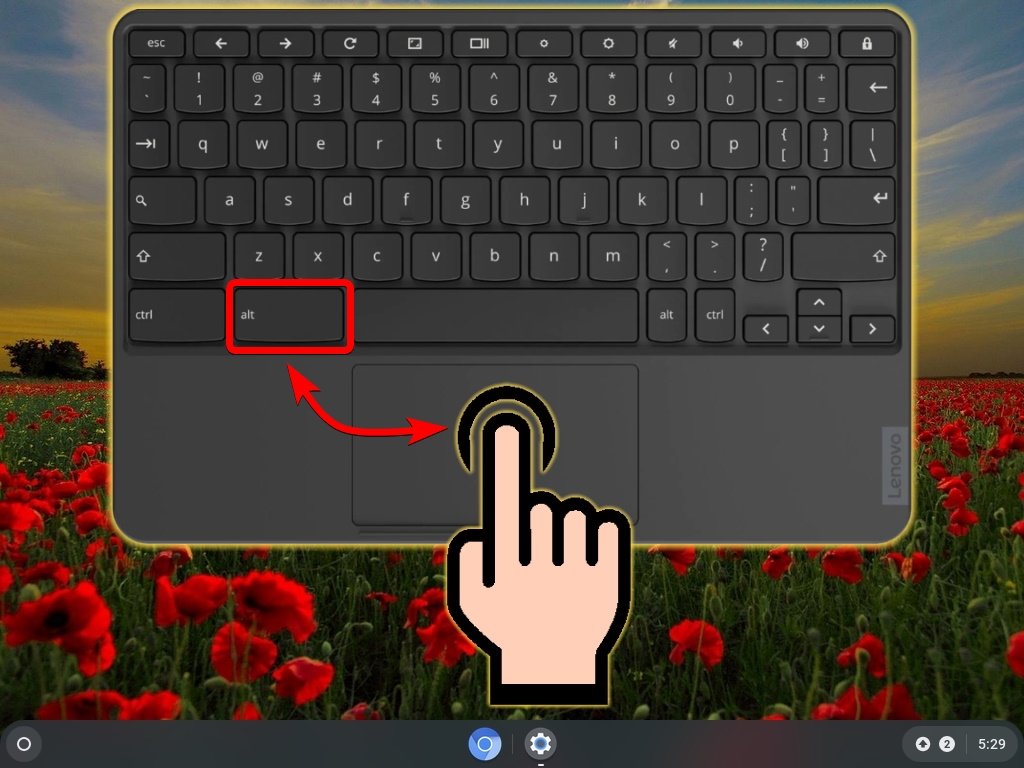
Welcome to the world of Chromebooks! These innovative, cloud-powered laptops are designed for simplicity, speed, and security, making them a fantastic choice for students, professionals, and everyday users alike. If you're new to Chromebooks, one of the first things you'll want to master is how to "left click" – the fundamental action for selecting items, opening links, and interacting with everything on your screen. While it might feel slightly different from a traditional mouse, your Chromebook offers several intuitive ways to get the job done.
Whether you prefer tapping, pressing, or using an external device, we're here to guide you through every method of left-clicking. Mastering these techniques will unlock your Chromebook's full potential, making your digital life smoother and more efficient. Let's dive in and discover how effortless it can be!
Mastering the Essentials: Your Chromebook's Built-in Left Click Options
The primary way to interact with your Chromebook is through its responsive trackpad, a touch-sensitive surface located just below your keyboard. It's designed to mimic many of the functions of a traditional mouse, often with added convenience. Understanding its capabilities is key to a seamless experience.
The Classic Trackpad Press: A Physical Click
For many, the most natural way to left-click is by physically pressing down on the trackpad. It feels much like clicking a mouse button, offering satisfying tactile feedback.
- Position your cursor: Move your finger across the trackpad until the on-screen cursor is hovering over the item you want to select.
- Apply gentle pressure: Place your index finger lightly on the trackpad surface, typically near the bottom edge.
- Press and release: Gently press down until you feel a slight click, then release the pressure. This registers your left click, selecting the item or activating the function.
This method provides clear confirmation of your action, and many users find it reassuring. To delve deeper into these fundamental interactions, you might want to Learn basic touchpad clicks and taps to fully grasp the nuances of your Chromebook's trackpad.
Effortless Tapping: Enabling "Tap to Click"
If you prefer a lighter touch, your Chromebook offers a "Tap to Click" feature that lets you register a left click with a simple tap, no physical press required. This can be faster and reduce strain over time.
To enable this feature, follow these simple steps:
- Open the system tray: Click on the time display in the bottom-right corner of your screen.
- Access settings: Click the gear icon (⚙️) to open your Chromebook's settings.
- Navigate to Touchpad settings: In the settings menu, select "Device" from the left-hand panel, then click on "Touchpad."
- Toggle "Tap to Click": Find the "Tap to Click" switch and slide it to the "on" position.
Once enabled, you can simply tap the trackpad surface with a single finger to perform a left click. It's an incredibly convenient way to interact, and you'll find yourself navigating with ease.
Beyond the Single Click: Exploring More Trackpad Power
While left-clicking is foundational, your Chromebook's trackpad can do so much more. You'll quickly discover a world of intuitive gestures that enhance your productivity and navigation. For instance, knowing how to perform a "right click" is just as important for accessing context menus and additional options. If you're curious about these other vital functions, make sure to explore How to right-click and access menus on your device.
Furthermore, the trackpad isn't just for clicking; it’s a gateway to fluid navigation. From scrolling through documents to zooming in on images, there are many multi-finger gestures designed to make your experience smoother. To truly master your device, you'll want to check out Advanced Touchpad Gestures for Navigation, which covers everything from two-finger scrolling to three-finger swipes. You'll be amazed at how quickly you can move around!
Keyboard Shortcut: The "Alt" Key Helper
Sometimes, reaching for the trackpad isn't the most convenient option, or you might prefer a keyboard-centric approach. Chromebooks offer a handy keyboard shortcut to perform a left click. Simply press and hold the "Alt" key on your keyboard, then tap on the trackpad. This combination simulates a left click, giving you another flexible way to interact with your screen.
Expanding Your Horizons: External and Touch Input Methods
Chromebooks are incredibly versatile, supporting various input methods beyond their built-in trackpad. These options provide flexibility, catering to different preferences and situations.
Using an External Mouse: Familiar Comfort
For many, the comfort and precision of a traditional mouse are unmatched. Good news: Chromebooks are highly compatible with most external mouse models, whether wired via USB or wireless via Bluetooth.
- Connect your mouse: Plug your USB mouse into an available port, or pair your Bluetooth mouse through the Chromebook's settings (Settings > Bluetooth > Pair new device).
- Position and click: Once connected, move the mouse to position the cursor over your desired item.
- Press the left button: Simply press the left button on your external mouse as you would on any other computer.
This method offers a familiar experience for those transitioning from Windows or macOS. For a detailed walkthrough on setting up and optimizing your external pointer, you'll find everything you need by learning about Using an external mouse with Chromebook.
Tapping on a Touch Screen: Intuitive Interaction
Many Chromebooks come equipped with a touch screen, offering a wonderfully direct way to interact with your device. This method is particularly intuitive when using your Chromebook in tablet mode.
- Touch the screen: Simply place your finger on the screen over the item you wish to select.
- Tap lightly: Tap the screen once with your finger, without applying excessive pressure. This registers a left click, just like tapping the trackpad.
It's a fantastic option for quick selections and provides a very tactile experience.
Drag and Drop Functionality: Moving Items with Ease
Once you're comfortable with basic left-clicking, you'll quickly want to master "drag and drop." This essential function allows you to move files, rearrange icons, or select text by holding down the left click and dragging your item across the screen. Whether you're organizing your desktop or moving attachments into an email, this skill is indispensable. To get a comprehensive guide on how to utilize this, be sure to read our detailed instructions on Drag and Drop Functionality on your Chromebook.
Troubleshooting Your Left Click: When Things Don't Go as Planned
Occasionally, your left click might not work as expected. Don't worry, these issues are usually minor and easy to resolve. Here are some common troubleshooting steps:
- Restart your Chromebook: The classic fix for many tech woes! A simple reboot can often clear up minor software glitches.
- Clean your trackpad or screen: Dirt, dust, or fingerprints can interfere with trackpad sensitivity. Use a clean, lint-free cloth to gently wipe the surface.
- Adjust trackpad settings: Head back to Settings > Device > Touchpad. Experiment with sensitivity and other click options to see if a different configuration helps.
- Update Chrome OS: Ensure your operating system is up to date. Go to Settings > About Chrome OS > Check for updates. Install any pending updates and restart your device.
- Test with another input device: If you're using an external mouse, try a different one. If your touch screen isn't responding, try the trackpad. This helps determine if the issue is with a specific device or the Chromebook itself.
Practice Makes Perfect: Your Path to Chromebook Mastery
Left-clicking is just the beginning of your Chromebook journey. The more you practice the various methods – whether it's the physical trackpad press, the gentle "Tap to Click," using an external mouse, or interacting directly with the touch screen – the more comfortable and efficient you'll become. Each method offers a slightly different feel and advantage, so find what works best for your workflow and personal preference.
Embrace the simplicity and flexibility of your Chromebook. By mastering these fundamental interactions, you're setting yourself up for a productive and enjoyable experience, unlocking a world of possibilities for work, learning, and play.